Please include your full name in your presentation file's name.
If you have trouble uploading your presentation material with the instructions below, feel free to reach out to us for help. You can also send your presentation material to us directly by email (including your name and "Presentation material" in the subject), but please keep this only as a backup method if you have trouble with the upload.
Instructions for uploading your presentation material to Indico
You will see your presentation listed; click on its title to access its details. It may appear twice (under both "speaker" and "author"), just click on either occurrence.
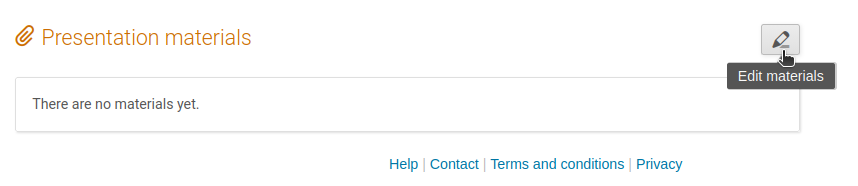
At the bottom of the page detailing your presentation's abstract, you will then see the "Presentation materials" header. Click on the pen icon there ("Edit materials"):
In the new window ("Manage material"):
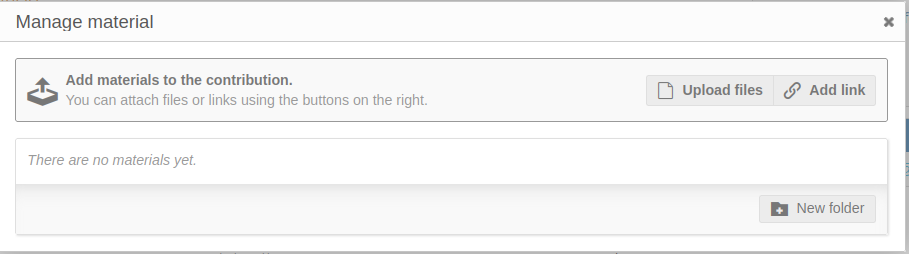
click on "Upload files", which opens yet another window which lets you drag your file in or select it from your computer files. Please include your full name in your presentation file's name before uploading it there, and, before clicking the "Upload" button, please make sure to:
-
Disable the "Convert to PDF" option. (It will be enabled by default!) It may be anyway that you simply do not want to convert your presentation into a PDF (due to animations or videos); and if you do, then we rather recommend that you convert it yourself before the upload.
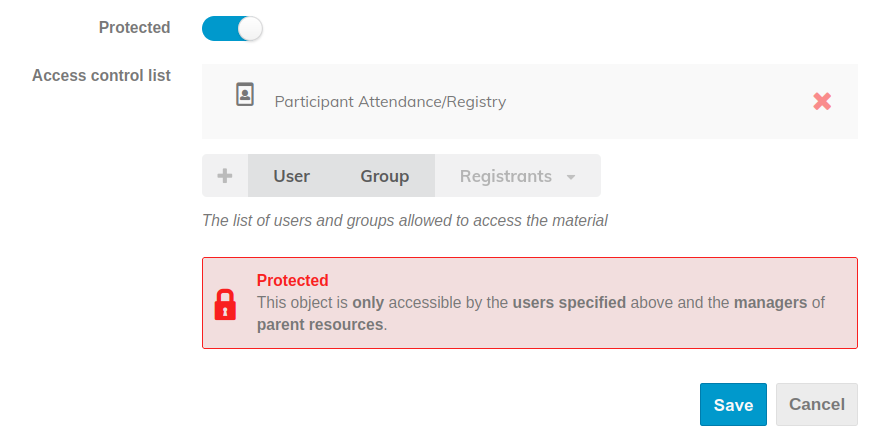
- Select "Protected" (it will not be selected by default!), then select "Registrants" (and click again on the single item "Registrants in "Participant Attendance/Registry" " that appears on click) to allow all other registered participants to access your slides. If "Protected" is not selected, then your uploaded document will in principle be publicly available online.
The bottom half of the "Upload files" window should look as below before you click "Upload":
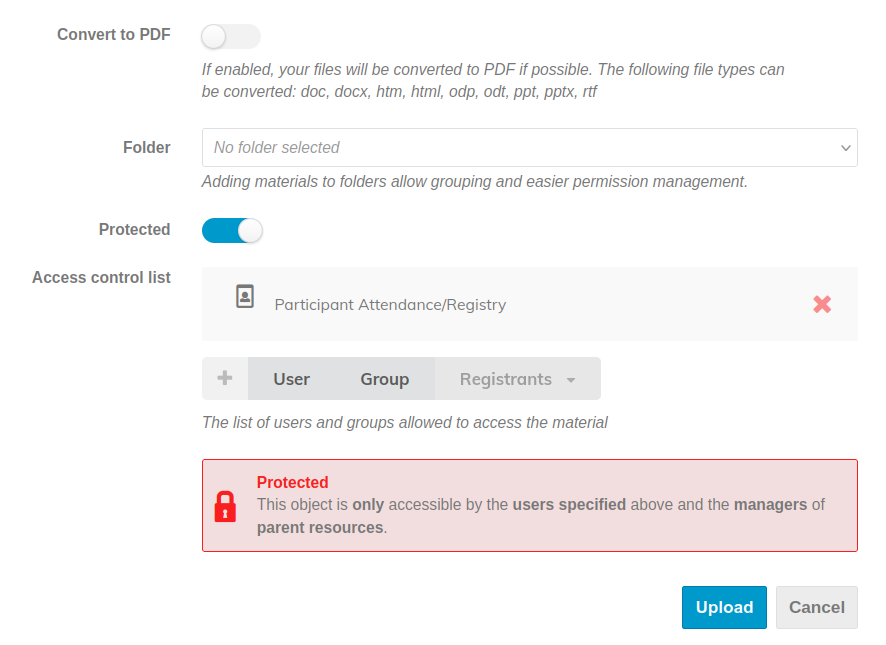
Note that you will be able to edit your uploaded files and their permissions after this step if you missed something, from the "Manage material" window. You can also click "Upload files" again to upload an additional file.
Instructions for modifying your presentation material and its permissions on Indico
The first steps are identical to uploading your presentation material for the first time:
Log in to your Indico Global account (which you used to submit your abstract and upload your presentation earlier) and go to the "My contributions" tab on the ACGRG13 / CosPA2026 conference pages:
https://indico.global/event/16063/contributions/mine
You will see your presentation; click on its title to access its details. It may appear twice (under both "speaker" and "author"), just click on either occurrence.
At the bottom of the page detailing your presentation's abstract, you will then see the "Presentation materials" header. Click on the pen icon there ("Edit materials"):
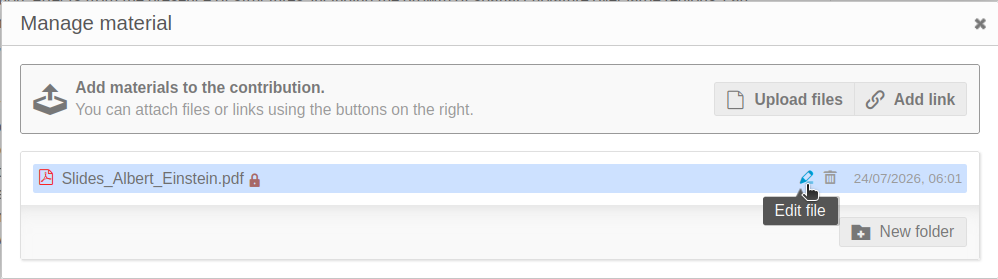
A new window ("Manage material") opens, which should at this stage already contain the document(s) that you uploaded previously.
Hover over your document and click on the "edit" button that appears on the right-hand side (with a pencil icon):
If "Protected" is not selected, then your uploaded document will be publicly available online.